You can look up an English Pokémon card with your phone’s camera without installing an app or creating an account. The free KnowMyCards web scanner searches a photo of one card at a time and returns possible catalog matches. You can also choose a photo you already have.
The useful part comes after the photo: compare the suggested cards with your copy, then open the matching entry for printing and condition prices. Here is the walkthrough, including what to do when the first result is wrong.
1. Open the scanner in your browser
Open Scan a card on your phone. For a new search, the scanner attempts to open the camera. Allow camera access when your browser asks, or select Choose photo to use an existing picture.
Use a current browser such as Safari or Chrome with JavaScript enabled. Browser support also depends on the features and storage available on your device. If photo search is unavailable, the page offers a link to search by name instead.
If earlier results are restored, select Scan again to start with another card. You do not need to install anything to continue.
2. Frame one complete card
Place the card where you can see its whole front. Keep all four corners inside the guide, hold the camera steady and use clear, even light. If glare hides the illustration or small printed details, adjust the angle before taking the photo.
With the camera ready, tap Search this card. If you selected an existing photo, drag the frame over one card and use the size slider to fit it, then tap the same button. A photo may contain several cards, but the search frame should cover only the one you want to identify.
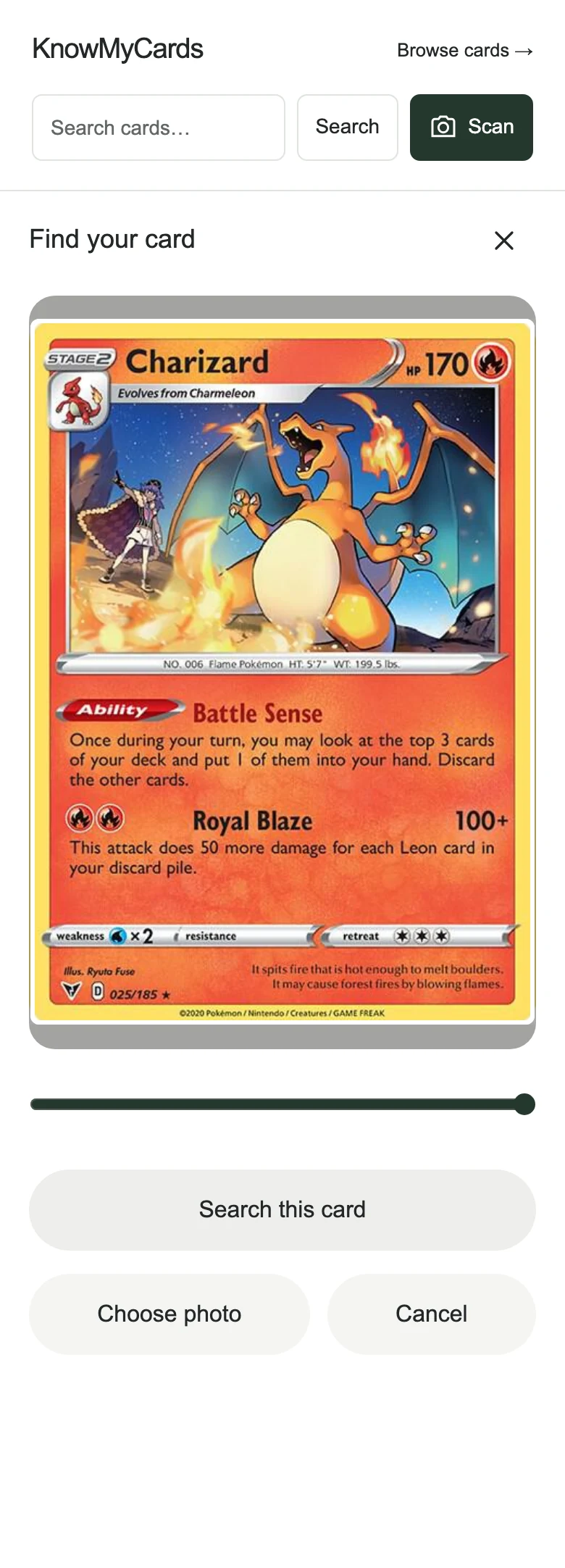
Keep the page open while it searches. First use may take a moment to prepare photo matching, and you need an internet connection to complete the lookup. For information about how scanner photos are handled, read our privacy page.
3. Compare the possible matches
The results are labeled Possible matches. Treat them as suggestions to check, rather than an automatic confirmation that the first entry is your card. Open a likely result and compare:
- Name and language: include designations such as ex, EX or V. Photo matching currently covers English Pokémon cards.
- Collector number and set: compare the whole identifier, including letters, leading zeros and the number after the slash.
- Artwork and stamps: check the illustration and any promo or anniversary marks.
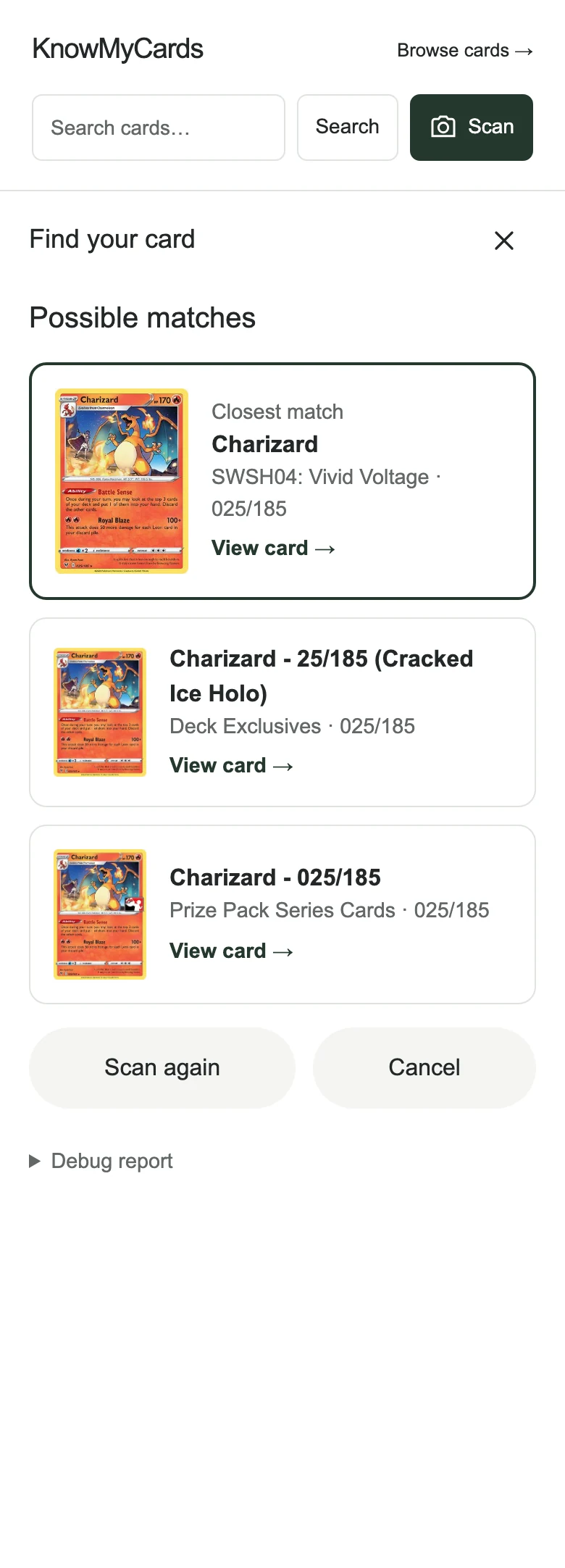
Similar-looking releases can have different catalog entries. Our Charizard identification guide shows examples with shared numbers or artwork, including stamped versions. A visual match does not authenticate a physical card.
4. Choose the printing and condition
Once the card identity matches, inspect your copy’s finish and select the corresponding printing on its card page. Normal and Reverse Holofoil versions can share a number and illustration. A photo result does not establish the foil treatment, and a flat catalog image may not show it clearly.
Choose the appropriate condition before comparing the ungraded price. The scanner does not assess wear or assign a professional grade. A Near Mint estimate should not be treated as the price of every copy.
The card page already provides available printing and condition estimates, history and recent reported sales. Check their source dates and details: a sale for another printing or grade may not be a useful comparison. Our guide to prices and sales explains the differences and missing data.
5. If nothing matches, use the printed details
Select Scan again after the results to try a clearer photo. If camera access was denied, use Choose photo instead. JPEG, PNG and WebP images are supported. If a search cannot finish, follow its retry message or cancel before choosing another photo.
You can also search by the card’s name and complete number. Our number lookup guide shows where to find it. For a Japanese card, use the Japanese number and promo guide; Japanese catalog entries are available through text search, but the photo scanner’s recognition scope is English.
A missing or incorrect suggestion can reflect photo quality or catalog coverage. It does not prove that your card is fake. Keep the physical card beside you and check the printed details before choosing a result.